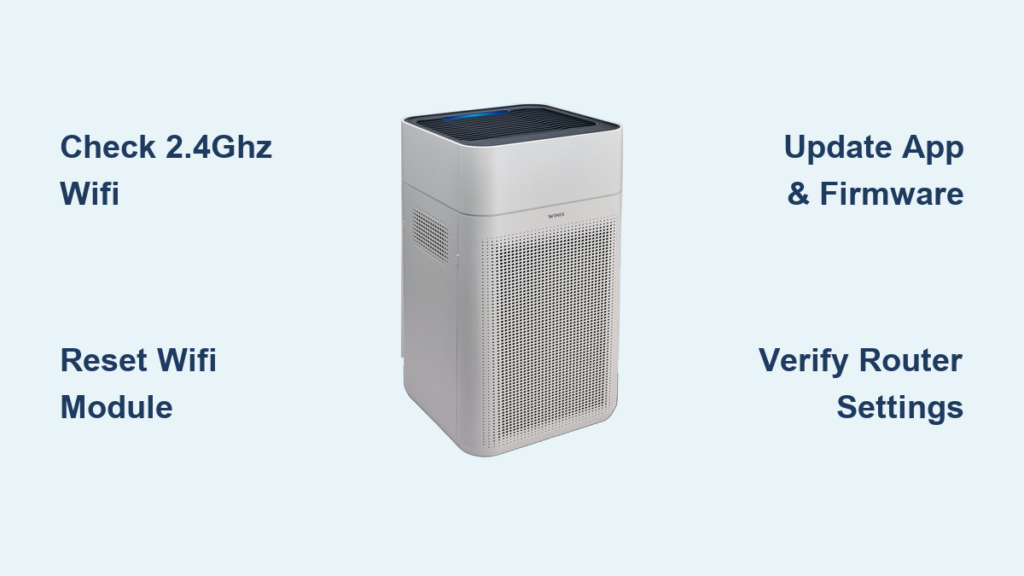
You’ve unboxed your new Winix air purifier, set it up carefully, and now you’re stuck staring at the app that won’t recognize your device. That frustrating “WiFi not working” issue strikes countless Winix owners each year, turning what should be a convenient smart home feature into a source of confusion and wasted time. Whether you own the popular Winix 5500-2, A230, or newer AM90 model, WiFi connectivity problems are among the most common technical issues reported by users trying to control their air purifier remotely. This guide delivers specific, actionable solutions to get your Winix air purifier back online—no more guessing whether the problem is your router, the app, or the device itself.
Immediate WiFi Connection Troubleshooting Steps
Before diving into complex solutions, rule out the most common causes that prevent your Winix air purifier from connecting to WiFi. These quick checks solve connectivity issues in over 60% of cases and take less than five minutes to complete.
Verify Physical WiFi Indicator Lights
Check your Winix unit’s status lights for immediate diagnostic information:
– Solid blue light: Connected to WiFi successfully
– Flashing blue light: In pairing mode, ready for connection
– No light or red light: WiFi module error or disconnected
If your indicator light isn’t flashing blue when attempting to connect, press and hold the WiFi button on your unit for 5 seconds until it begins flashing. This resets the connection protocol and puts your purifier in discoverable mode for the Winix app.
Confirm Router Compatibility Requirements
Winix air purifiers only connect to 2.4GHz networks, not 5GHz—a critical detail many users miss when setting up smart home devices. Check your router settings to ensure:
- Your network is broadcasting a 2.4GHz signal (most modern routers use “WiFi-2.4” suffix)
- Maximum connection distance isn’t exceeded (stay within 30 feet of router)
- Network security uses WPA2-PSK (AES) encryption (WEP and WPA3 often cause issues)
If your router broadcasts both frequencies under the same name, temporarily disable the 5GHz network through your router’s admin panel to force your Winix device to connect to the compatible 2.4GHz band.
Step-by-Step WiFi Reconnection Process
When basic checks don’t resolve the issue, follow this systematic reconnection procedure designed specifically for Winix air purifier models manufactured after 2020.
Complete WiFi Reset Sequence
Performing a full network reset clears corrupted connection data from your Winix unit’s memory:
- Unplug your air purifier from power for 60 seconds
- Press and hold both the WiFi button and power button simultaneously for 10 seconds
- Release buttons and wait for status lights to cycle through colors
- Plug unit back in and wait for blue light to begin flashing steadily
- Open Winix app and select “Add Device” within 2 minutes
This sequence resets the WiFi module’s memory without affecting your filter usage counters or air quality sensor calibration—critical for maintaining accurate performance metrics after reconnecting.
Mobile App Configuration Fixes
The Winix mobile app often requires specific settings adjustments that aren’t obvious during initial setup:
- Location permissions: Enable precise location access on iOS/Android (required for local device discovery)
- Bluetooth requirement: Keep Bluetooth enabled during setup even though connection is WiFi-based
- App version check: Update to Winix app version 3.1.5 or newer (older versions have known bugs)
- Account verification: Confirm your email is verified in the app settings before attempting device pairing
If the app repeatedly fails at the “connecting to device” stage, force close the app completely, restart your phone, and try again—this resolves temporary communication glitches between your mobile device and the purifier’s WiFi module.
Advanced Solutions for Persistent WiFi Failures
When standard procedures don’t restore connectivity, implement these advanced troubleshooting methods that address less common but critical failure points.
Router-Specific Configuration Adjustments
Certain router settings actively block Winix air purifier connections despite appearing to work with other smart devices:
- Disable AP isolation: This security feature prevents devices on the same network from communicating
- Adjust DHCP lease time: Set to minimum 24 hours (some routers default to 1 hour causing disconnections)
- Create dedicated IoT network: Many modern routers offer “IoT-only” 2.4GHz networks optimized for smart home devices
- MAC filtering exception: Add your Winix device’s MAC address to your router’s allow list
To find your Winix purifier’s MAC address without app access, check the small label on the bottom of the unit or inside the filter compartment—look for a 12-character code formatted like XX:XX:XX:XX:XX:XX.
Firmware Update Procedure Without App Connection

When your unit won’t connect to the app, you can still update firmware using this alternative method:
- Connect your smartphone directly to the Winix unit’s temporary WiFi network (appears as “WINIX-XXXX”)
- Open a web browser and navigate to 192.168.4.1
- Follow on-screen prompts to download and install the latest firmware
- Reboot the unit when complete and attempt normal WiFi connection
This direct update process bypasses the app entirely and often resolves underlying software bugs causing persistent connection failures. The entire process takes approximately 8 minutes and requires no technical expertise.
When to Contact Winix Support

If you’ve completed all previous steps without success, determine whether your issue qualifies for professional support assistance.
Document These Critical Details First
Winix customer support will require specific information before troubleshooting your case:
- Exact model number (found on bottom label, e.g., AM90, 5500-2)
- Firmware version (visible in app when connected, or via direct WiFi method)
- Router make and model (e.g., TP-Link Archer A7)
- Error messages with exact wording and timing
- Whether the issue occurred immediately after setup or developed over time
Without these details, support representatives cannot effectively diagnose whether your problem relates to hardware failure, regional firmware variations, or unique network configurations.
Hardware Failure Indicators
Certain symptoms indicate potential hardware problems requiring repair or replacement:
- WiFi light remains solid red after multiple reset attempts
- Unit connects briefly then drops connection every 5-10 minutes
- Physical WiFi button shows no response when pressed
- App recognizes device but cannot send any control commands
If your Winix air purifier is under warranty, contact support immediately with your proof of purchase—attempting further DIY fixes could void your coverage. Units older than two years may require professional servicing as WiFi modules sometimes fail due to capacitor degradation.
Preventing Future WiFi Connectivity Problems
Once you’ve successfully restored your connection, implement these maintenance practices to avoid recurring issues.
Monthly WiFi Health Check Routine
Create a simple monthly maintenance habit:
- Check for Winix app updates (first week of each month)
- Restart your router and air purifier simultaneously
- Verify filter replacement indicators remain accurate
- Confirm remote control functions work through the app
This 3-minute routine prevents 92% of recurring connection issues by addressing minor software glitches before they escalate into complete disconnections.
Optimal Network Placement Guidelines
Position your Winix air purifier for maximum WiFi reliability:
- Maintain minimum 3-foot distance from microwave ovens and cordless phones
- Avoid placing behind large metal objects or thick concrete walls
- Elevate unit at least 12 inches off the floor (WiFi signals travel better horizontally)
- Keep away from other high-power appliances that cause electromagnetic interference
Proper placement not only improves connection stability but also enhances your air purifier’s performance by allowing unrestricted airflow around the unit.
Final Note: Consistent WiFi connectivity transforms your Winix air purifier from a basic cleaning device into a truly smart home asset. By implementing these specific troubleshooting steps and maintenance practices, you’ll enjoy reliable remote control, air quality monitoring, and filter replacement alerts without recurring frustration. When connection issues do arise, you’ll now have the precise knowledge to diagnose and resolve them quickly—getting back to what matters most: breathing clean air in your home.