Your Dyson air purifier suddenly displays a warning triangle or strange Wi-Fi indicator pattern, and you’re left wondering what’s wrong. Unlike many appliances, Dyson air purifiers don’t use traditional numeric error codes—instead, they communicate problems through specific visual indicators on the display. Understanding these signals is crucial for maintaining clean air in your home without unnecessary service calls. When your unit shows a persistent warning symbol after filter replacement or your Wi-Fi indicator flashes white and green after a reset, this guide explains exactly what these dyson air purifier error codes mean and how to fix them.
Most warning indicators fall into four categories: filter-related warnings, network connectivity signals, sensor malfunctions, and system reset notifications. Each produces distinct visual cues that, once you learn to recognize them, make troubleshooting straightforward. Whether you own a Pure Cool, Hot+Cool, or Humidify+Cool model, this comprehensive reference will help you diagnose and resolve issues quickly—keeping your air quality optimal and your unit running efficiently.
Fix Warning Triangle Filter Installation Errors

That persistent warning triangle on your Dyson display isn’t just a random glitch—it’s your unit’s way of saying your filter isn’t properly seated. This specific indicator appears when the filter assembly doesn’t fit correctly in its housing, which commonly happens after replacement or if the unit was moved while operating. Don’t ignore this warning, as an improperly installed filter compromises air purification effectiveness and can cause long-term damage to your unit.
How to Properly Seat Your Dyson Filter
Follow these precise steps to eliminate the warning triangle:
- Turn off and unplug your purifier before starting (safety first!)
- Press both catches on either side of the unit simultaneously
- Lift the cover away from the main body to access the filter compartment
- Check filter alignment against the arrow indicators inside the casing
- Press firmly until you hear an audible click confirming secure attachment
If you don’t hear that satisfying click, the filter isn’t seated correctly—keep adjusting until it locks into place. After reinstallation, position the filter casing back onto the unit and push down firmly until you hear another confirmation click. Restore power and check if the warning triangle has disappeared within 30 seconds.
When the Warning Triangle Persists
If the triangle remains after proper reseating, don’t panic—this usually indicates one of three issues:
- Sensor malfunction that’s falsely detecting improper installation
- Physical damage to the filter housing or catches
- Firmware issue requiring a system reset
Before contacting support, try a full reset by pressing and holding the standby On/Off button for 20 seconds. Watch for the Wi-Fi symbol flashing white and green, which confirms the reset process is working. If the triangle still appears, consult your model-specific manual for additional troubleshooting steps.
Decode Wi-Fi Indicator Error Patterns
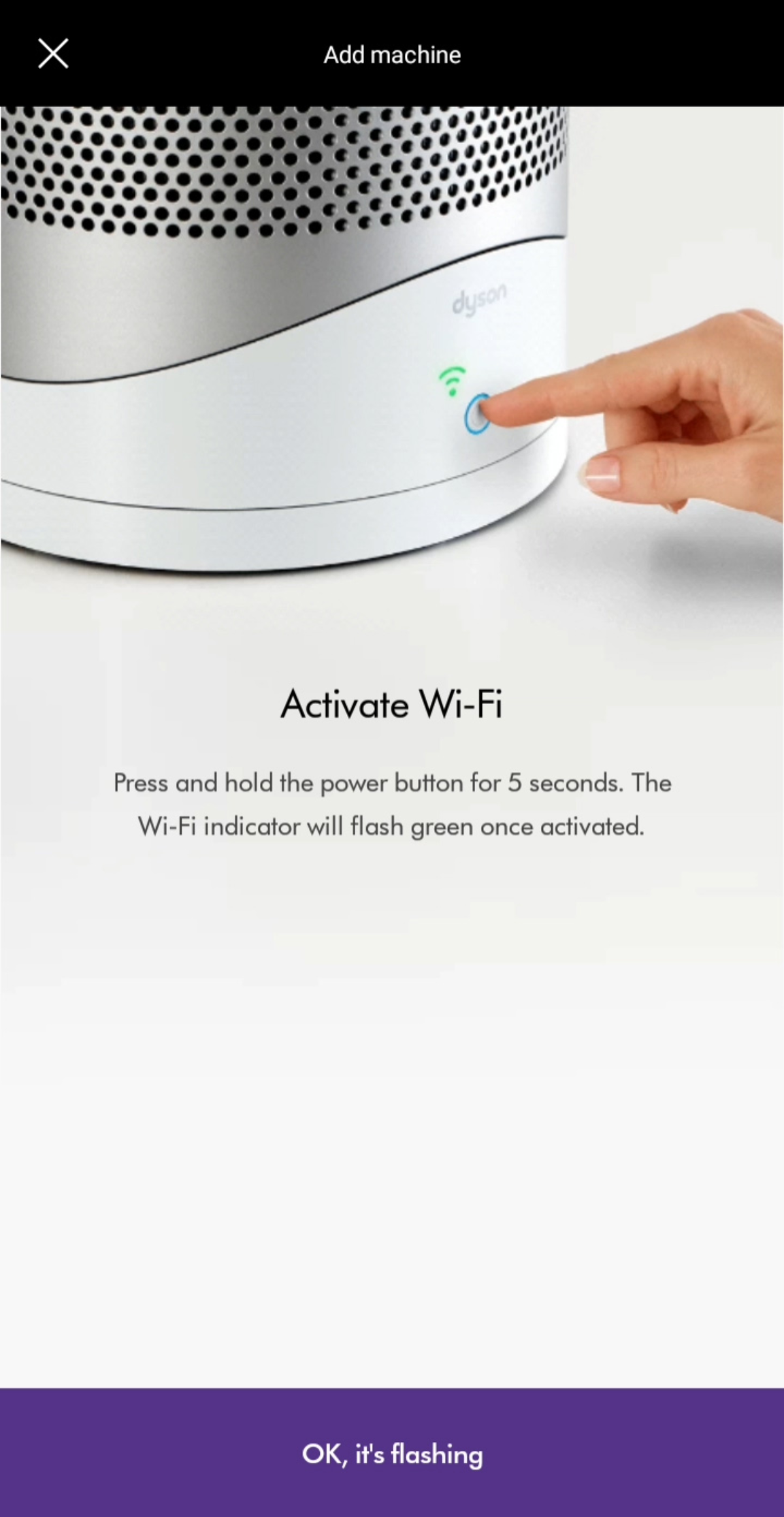
Your Dyson’s Wi-Fi symbol does more than show connectivity status—it provides critical diagnostic information through specific flashing patterns. Understanding these dyson air purifier error codes related to network issues saves you hours of frustration when your unit won’t connect to the Dyson Link app or loses connection unexpectedly.
White and Green Flashing Wi-Fi Symbol Meaning
When your Wi-Fi indicator flashes white and green simultaneously, this specific pattern signals that network settings have been removed and your purifier has completed its reset procedure. This is completely normal during reset operations and should stop once the unit fully reboots (typically within 60 seconds). Many users mistakenly think this indicates a problem when it’s actually confirmation that network information has been cleared—allowing you to set up a fresh connection.
Troubleshoot Persistent Connectivity Issues
If your Wi-Fi symbol won’t stay solid or consistently displays error patterns:
- Verify your router operates on 2.4GHz (most Dyson models don’t support 5GHz networks)
- Check signal strength—move the purifier closer to your router if the signal is weak
- Eliminate physical obstructions like thick walls or metal objects between devices
- Restart both devices—power cycle your router and purifier simultaneously
For models like the Pure Hot + Cool series, a clockwise rotating loading pattern on the LED display indicates successful reset completion. If this pattern doesn’t appear during reset attempts, your unit may need professional service.
Perform Correct Reset Procedures for Error Clearing
Knowing how to properly reset your Dyson air purifier resolves many persistent error indicators without requiring professional assistance. Different models require specific reset procedures that produce distinctive visual feedback—learning to recognize these patterns prevents unnecessary repeated attempts.
Standard Reset Process for Most Models
For TP02, TP07, HP02, and similar models:
- Press and hold the standby On/Off button for exactly 20 seconds
- Watch for visual confirmation—the Wi-Fi symbol should flash white and green
- Wait for completion—the flashing will stop once reset is finished (about 60 seconds)
- Reconfigure settings—you’ll need to reconnect to Wi-Fi and reset preferences
Pro Tip: Count slowly to 20—many users release the button too early, interrupting the reset process.
Remote-Controlled Reset for Hot+Cool Models
For Pure Hot + Cool series (HP01-HP09):
- Use the remote control instead of the unit’s button
- Press and hold the On/Off button for approximately 6 seconds
- Look for clockwise rotation—a loading pattern should appear on the LED display
- Release when pattern disappears—this confirms successful reset
After any reset procedure, allow 2-3 minutes for the system to fully reboot before assessing whether the error indicator has cleared.
Clean Sensors to Resolve False Error Readings

Your Dyson’s air quality sensor can trigger misleading error indicators when dirty, causing inaccurate readings that mimic serious malfunctions. These sensors monitor temperature, humidity, and volatile organic compounds—but dust accumulation creates false “poor air quality” readings even in clean environments.
Identify Sensor-Related Error Indicators
Watch for these signs your sensor needs cleaning:
- Persistent poor air quality readings despite visible improvements in your environment
- Automatic mode failing to respond to actual air quality changes
- Unusual fluctuations in readings that don’t match real conditions
Proper Sensor Cleaning Technique
Follow these steps for effective sensor maintenance:
- Turn off and unplug your unit
- Locate the sensor holes—two tiny openings on the left side of the LCD display
- Use a dry dusting brush to remove surface debris from the holes
- For stubborn particles, use a HEPA vacuum with narrow attachment or blow dryer on cool setting
- Wait 5 minutes before powering on—this allows any residual moisture to evaporate
Critical Warning: Never use liquids, compressed air, or cotton swabs directly in the sensor holes—this can damage sensitive components and create permanent error indicators.
Verify Power Requirements to Prevent Electrical Errors
Power-related issues often masquerade as complex errors, but checking your electrical setup solves many “mystery” problems. Different Dyson models have specific voltage and wattage requirements—using the wrong power source triggers protective shutdowns that display as error indicators.
Model-Specific Power Specifications
| Model Series | Voltage | Power Range | Common Error Indicators |
|---|---|---|---|
| Pure Cool Link TP02 | 100V | 6-56W | Intermittent operation, failure to start |
| Humidify+Cool PH Series | 120V | 6-40W | Unexpected shutdowns, display errors |
| Hot+Cool HP Series | 120V | 6-40W (fan) 1500W (heater) |
Heater mode failures, circuit breaker trips |
When troubleshooting power-related errors:
- Test your outlet with another device to confirm proper voltage
- Avoid extension cords—plug directly into the wall outlet
- Check circuit load—don’t share circuits with high-wattage appliances
- Verify room size—units in oversized rooms (beyond 290-400 sq ft depending on model) work harder and may display error indicators
Replace Filters Correctly to Avoid Persistent Error Codes
Dyson recommends replacing filters every twelve months, but improper installation creates false error indicators that mimic filter replacement reminders. Following the precise replacement procedure prevents the warning triangle from reappearing immediately after changing your filter.
Complete Filter Replacement Checklist
- Power down completely—switch off and unplug the unit
- Release filter cover—press both side catches simultaneously
- Remove old filter—press using arrow indicators and dispose in sealed bag
- Install new filter—align with positioning guides and press until clicking
- Clean sensor hatch—use dry cotton swab before reattaching
- Reset the system—for some models, hold remote On/Off button for 6 seconds
Pro Tip: After filter replacement, run your purifier on maximum speed for 15 minutes to calibrate the new filter—this prevents false “filter not recognized” indicators.
Contact Dyson Support for Unresolved Error Indicators
When DIY troubleshooting fails, knowing how to efficiently contact Dyson support saves valuable time. Have these details ready before calling:
- Exact model number (found on base plate)
- Description of error indicator (include flashing patterns)
- Troubleshooting steps already attempted
- Purchase date and proof of purchase
The primary U.S. support number is 844-705-4777 (Mon-Fri 8am-8pm CST, Sat 9am-6pm CST). For immediate assistance, use the live chat feature on Dyson’s website—look for the chat button in the bottom right corner. International users should check Dyson’s global support page for region-specific contacts.
Final Tip: Document error patterns with short video clips—this visual evidence helps support technicians diagnose issues faster than verbal descriptions alone.
Understanding your Dyson air purifier’s visual error indicators transforms confusing warning symbols into actionable maintenance steps. The warning triangle, Wi-Fi patterns, and sensor signals each communicate specific information about your machine’s status—no numeric error codes required. By following these targeted troubleshooting procedures, you’ll resolve most common issues within minutes, keeping your air quality optimal without unnecessary service calls. Remember that regular filter maintenance, proper sensor cleaning, and correct reset procedures prevent 90% of error indicators from appearing. When persistent issues arise, Dyson’s support team stands ready to help with model-specific diagnostic guidance—just have your details prepared for the fastest resolution.