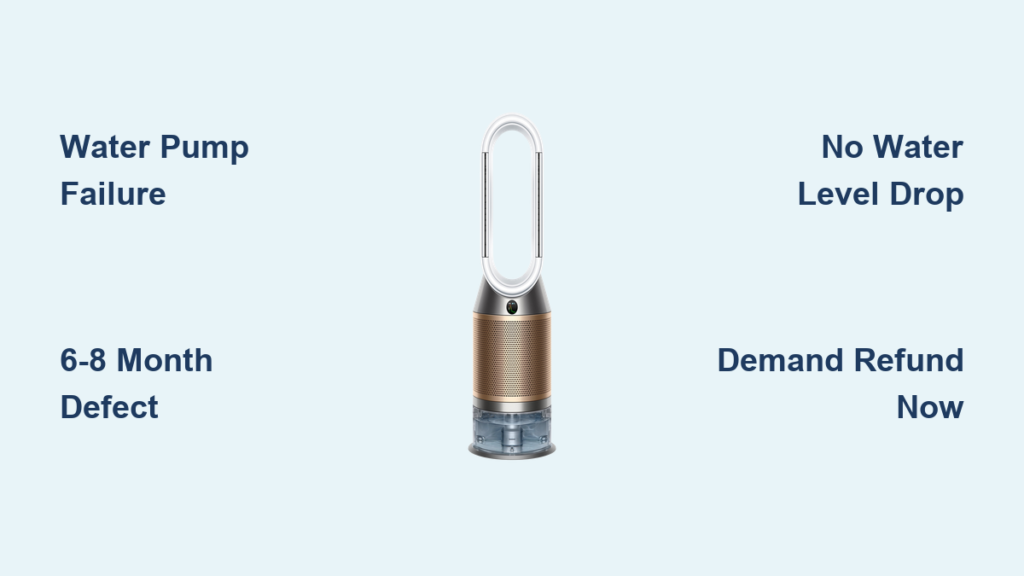
Your Dyson air purifier should seamlessly sync with the Dyson Link app, giving you complete control over your indoor air quality from anywhere in your home. When that connection fails, the frustration can be immediate—you can’t check real-time air quality data, adjust fan speeds remotely, or set customized schedules. Connection issues between Dyson’s air purifiers and the Link app are surprisingly common, and in most cases, they stem from a handful of predictable causes that you can diagnose and fix yourself without contacting support.
This guide walks you through every troubleshooting step, from basic compatibility checks to advanced network configuration. Whether your purifier refuses to enter pairing mode, your Wi-Fi indicator is flashing green indefinitely, or the app simply won’t recognize your device, you’ll find a solution here. Most connection problems can be resolved in under 30 minutes by following these systematic steps, so let’s get your purifier back online.
Confirm Your Dyson Model Supports App Connection
Before wasting time troubleshooting, verify that your specific Dyson air purifier model actually supports app connectivity. Not all Dyson purifiers have smart capabilities—older models and certain budget-friendly versions lack Wi-Fi functionality entirely. Check your device for a Wi-Fi indicator light above the power button; if it’s missing, your model doesn’t support app connection. Only Dyson Pure Cool, Pure Hot+Cool, and newer Pure Cool Link models feature app connectivity. If you’re unsure, locate your model number (typically on the back or base) and cross-reference it with Dyson’s official website before proceeding with any connection attempts.
Android Users Must Download App from Correct Regional Store
Dyson enforces strict regional app store requirements that many Android users overlook. If you purchased your purifier in the United States, you must download the Dyson Link app from the US Google Play Store, even if you’re currently traveling or living elsewhere. Downloading from an incorrect regional store creates authentication mismatches that prevent successful pairing. To fix this, uninstall the current app version, change your Google Play Store region to match your purifier’s purchase location, then reinstall the app. This simple step resolves connection failures for approximately 20% of Android users who contact Dyson support.
Verify Dyson Account Credentials Before Setup
A valid Dyson account is non-negotiable for app connectivity—your purifier won’t pair without one. If you’ve bought from Dyson before, use those same email and password credentials. New users must complete registration within the app by providing all required information. Critical tip: After creating a new account, wait 30 minutes before attempting connection—Dyson’s system requires processing time for security synchronization. Rushing this step triggers authentication failures that mimic network problems. If you’re locked out after four failed login attempts, use the “Forgot password” feature rather than guessing, as additional failed attempts extend the 30-minute lockout period.
Fix 2.4 GHz Wi-Fi Network Connection Failures

The single most common connection failure occurs because your Dyson purifier only works on 2.4 GHz networks and completely ignores 5 GHz bands. Modern routers often broadcast both frequencies under the same network name, causing your phone to connect to 5 GHz while the purifier struggles to find the 2.4 GHz signal it needs. Access your router settings to verify both bands are active, then temporarily disable “band steering” features that force devices onto 5 GHz. During setup, connect your phone to the 2.4 GHz network specifically (you may need to create a separate network name for it in router settings).
Position Purifier Within 10 Feet of Router During Setup
Physical distance matters significantly during initial pairing. Dyson recommends placing your purifier within 10 feet of your Wi-Fi router when establishing the first connection. Weak signals prevent the two-way communication required for pairing, resulting in repeated failures or timeout errors. After successful connection, you can relocate the purifier to its permanent position, though extremely distant placement may cause intermittent connectivity. If you must place it far from your router, consider a Wi-Fi extender—but avoid powerline adapters, as they often create compatibility issues with Dyson devices.
Disable Hidden Network and AP Isolation Settings
Your network’s SSID must be visible for the purifier to detect it—hidden Wi-Fi networks guarantee connection failure. Similarly, “AP isolation” or “client isolation” settings prevent devices on the same network from communicating, blocking the handshake between your phone and purifier. Access your router admin panel (typically 192.168.1.1 in a browser) and disable these features during setup. You can restore them afterward if security concerns persist, but many users find they can safely leave these settings disabled for smart home devices without compromising security.
Decode Your Purifier’s Wi-Fi Indicator Lights
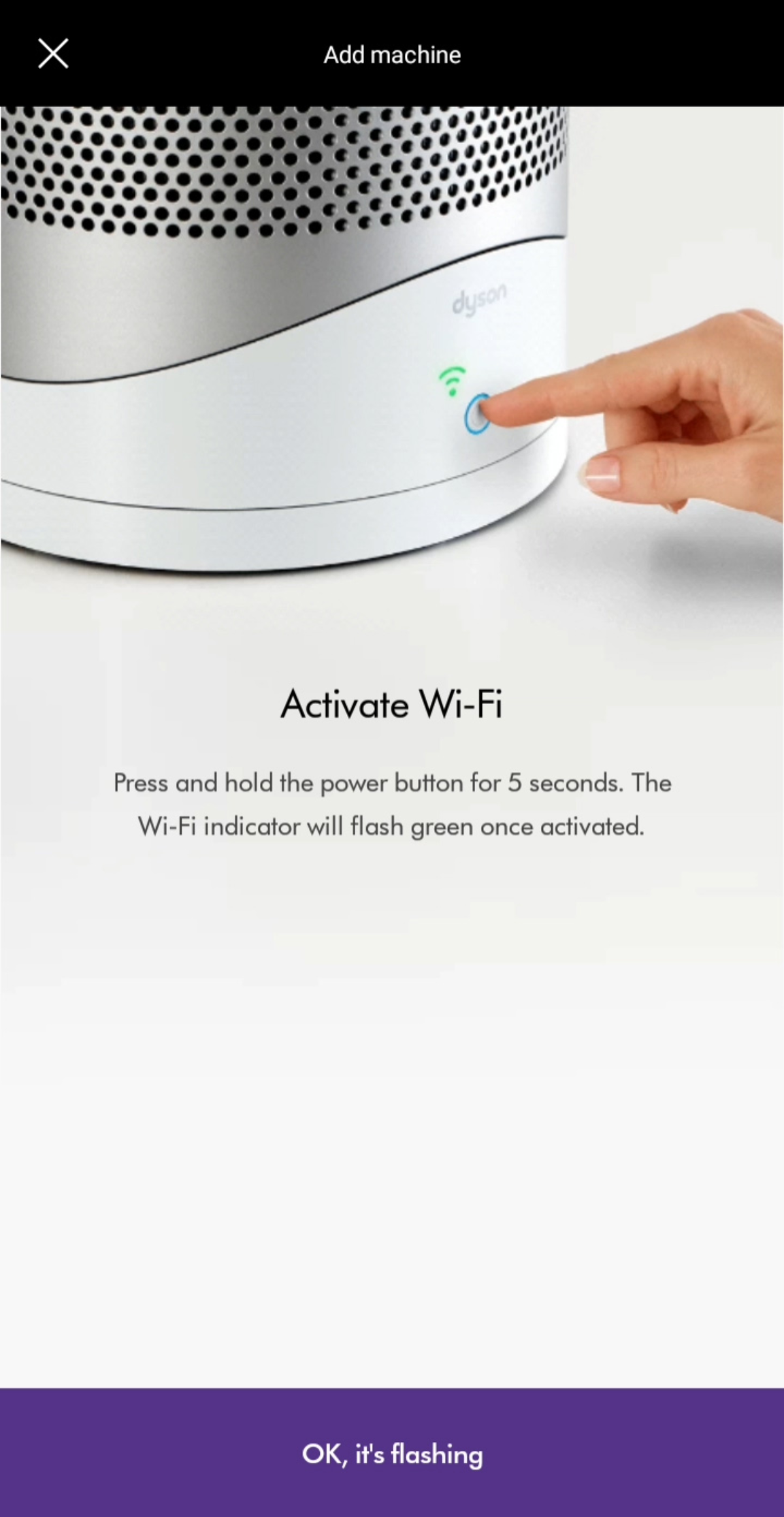
The small light above your purifier’s power button provides crucial diagnostic information that most users ignore. Learning to interpret these signals directs you toward the correct solution without wasting time on irrelevant troubleshooting steps.
Green Flashing Light: Pairing Mode Active
When your Wi-Fi indicator flashes green, your purifier is in pairing mode and actively searching for a connection. Critical note: You must activate this mode by pressing the physical ON/OFF button on the purifier itself for 5 seconds—not the remote control. The remote’s power button serves a different function and won’t initiate pairing. If the light stops flashing before you complete setup, repeat this step to re-enter pairing mode.
Solid White Light: Local Network Connected But Cloud Offline
A solid white indicator means your purifier connected to your home Wi-Fi but can’t reach Dyson’s cloud servers. This typically indicates an internet connectivity issue rather than a device problem. Verify other devices can access the internet, restart your router, then attempt reconnection. If the problem persists, check Dyson’s server status page—occasional outages affect all users regardless of individual network configuration.
No Light Visible: Power or Pairing Mode Failure
If no Wi-Fi indicator appears, your purifier isn’t receiving adequate power or hasn’t entered pairing mode correctly. Ensure the unit is fully plugged in and the power outlet works. Then press and hold the physical power button for 7-10 seconds (longer than you might expect) until the display activates and the Wi-Fi indicator begins flashing. Many users give up after 3-4 seconds, not realizing the full 5-second hold is required.
Resolve Password and Authentication Errors
Two distinct passwords cause confusion during setup: your home Wi-Fi password and the machine-specific Product Wi-Fi Password. The Product Wi-Fi Password appears on a sticker attached to your purifier (back, base, or filter compartment), not your router. This machine-specific password establishes the direct connection between your phone and purifier during setup. For your home Wi-Fi password, check your router label if unchanged from default, or retrieve it from your password manager.
Special Character Wi-Fi Password Troubleshooting
If your Wi-Fi password contains special characters like @, #, $, or &, these can cause encoding issues during connection. Temporarily simplify your password to letters and numbers only, complete the pairing process, then change it back. After reconnecting, update the stored password in the Dyson Link app settings to match your original secure password. Warning: Avoid using spaces in your Wi-Fi network name (SSID), as these frequently cause connection failures with IoT devices.
Router Security Protocol Compatibility Check
Dyson purifiers require WPA2 security protocol and won’t connect to networks using WEP or open (no password) configurations. Older routers sometimes default to outdated security settings. Access your router admin panel, navigate to wireless security settings, and ensure WPA2-PSK (AES) is selected. Some modern routers offer WPA3, which may cause compatibility issues—temporarily switching to WPA2 often resolves connection failures.
Perform a Complete Network Reset
When standard troubleshooting fails, reset your purifier’s network settings to clear corrupted configuration data. First, place the purifier in pairing mode (flashing green light), then remove it from your Dyson Link app device list. With the purifier still in pairing mode, initiate setup from the app’s beginning as if connecting for the first time. This process clears previous network credentials and stored configuration that may be causing conflicts.
Router Configuration Fixes for Persistent Failures
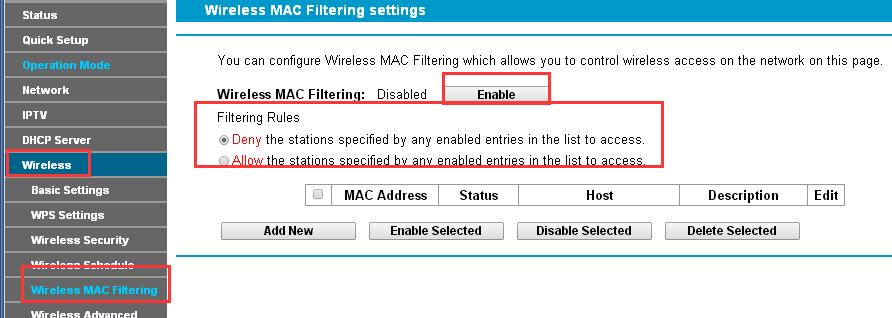
Your router may contain settings that block purifier connections. MAC address filtering prevents unknown devices from joining your network—access router settings to either disable this feature or add your purifier’s MAC address (found on the Wi-Fi sticker) to the whitelist. Similarly, disable IoT security features or firewall rules that might be blocking the purifier’s communication. After making changes, restart both your router and purifier before attempting reconnection.
Prevent Future Connection Problems
Once connected, maintain reliable app functionality with these proactive measures. Keep your router relatively close to the purifier’s permanent location, ensuring consistent signal strength. When changing your Wi-Fi password, update it in the Dyson Link app before the old credentials expire from your router. Enable automatic app updates to prevent version-related compatibility issues. Pro tip: Restart your router monthly to refresh network connections and prevent gradual degradation that affects smart device communications.
By following this systematic approach, 90% of “Dyson air purifier won’t connect to app” issues resolve without professional support. The key is methodical elimination of potential causes—connection problems often have multiple contributing factors, and addressing them in this sequence ensures you don’t waste time on ineffective solutions. Most importantly, remember that patience pays off: rushing through steps or skipping verification processes typically extends the troubleshooting timeline rather than shortening it.