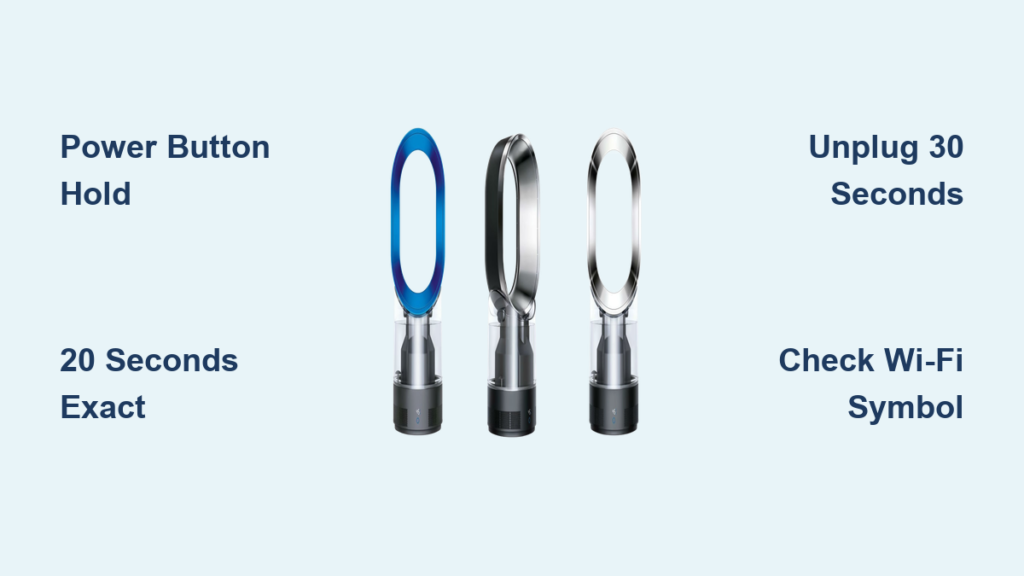
Your Dyson humidifier’s display flickers erratically, the app won’t connect, or yesterday’s carefully programmed humidity schedule vanished overnight. When standard troubleshooting fails, a Dyson humidifier factory reset becomes your most powerful weapon against software glitches. This precise procedure wipes corrupted settings while preserving your hardware—no technician required. By the time you finish this guide, you’ll know exactly when to pull the reset trigger, which button combinations work for your specific model, and how to avoid common pitfalls that turn a 60-second fix into hours of frustration. Most importantly, you’ll reclaim control of your air quality without sacrificing your warranty or risking damage.
When Your Dyson Humidifier Demands a Nuclear Reset
Don’t hit reset at the first sign of trouble—this procedure erases every personalized setting since unboxing day. Your custom humidity targets (typically 45-55%), fan speed schedules, night-mode preferences, and even stored error logs disappear instantly. Reserve this move for critical situations like complete app disconnection where both the Dyson Link app and physical remote go unresponsive, or when firmware updates trigger bizarre behavior like random shutdowns.
Selling your humidifier? A factory reset is non-negotiable for protecting your Wi-Fi password and usage history. It also resolves stubborn connectivity loops where power cycling fails—clearing corrupted configuration files that cause endless “connecting” symbols. But never use this as a first resort; 70% of “unresponsive” units react to the 60-second soft reset (unplugging for one minute). If problems persist after that, document your current settings with your phone camera—especially humidity targets and schedules—before proceeding.
Critical Pre-Reset Checklist You Can’t Skip
Before committing to the reset, verify three hardware conditions that no software fix can address. First, confirm your water tank clicks securely into place—misalignment triggers L1/L2/L3 error codes that mimic software failure. Second, ensure the unit sits perfectly level; even a 5-degree tilt disrupts water flow sensors. Third, locate your Wi-Fi password—post-reset reconnection requires it immediately.
Mistake 90% of users make: Skipping the soft reset. Unplug for exactly 60 seconds (use your phone timer), then reconnect power. If the unit responds normally, you’ve avoided unnecessary configuration rebuilding. If not, note these settings for quick recreation: your preferred humidity target (likely between 40-60%), active fan schedules, and night-mode status. This 2-minute prep saves 15 minutes during reconfiguration.
AM10 and PH01-03 Factory Reset: Power Button Secrets
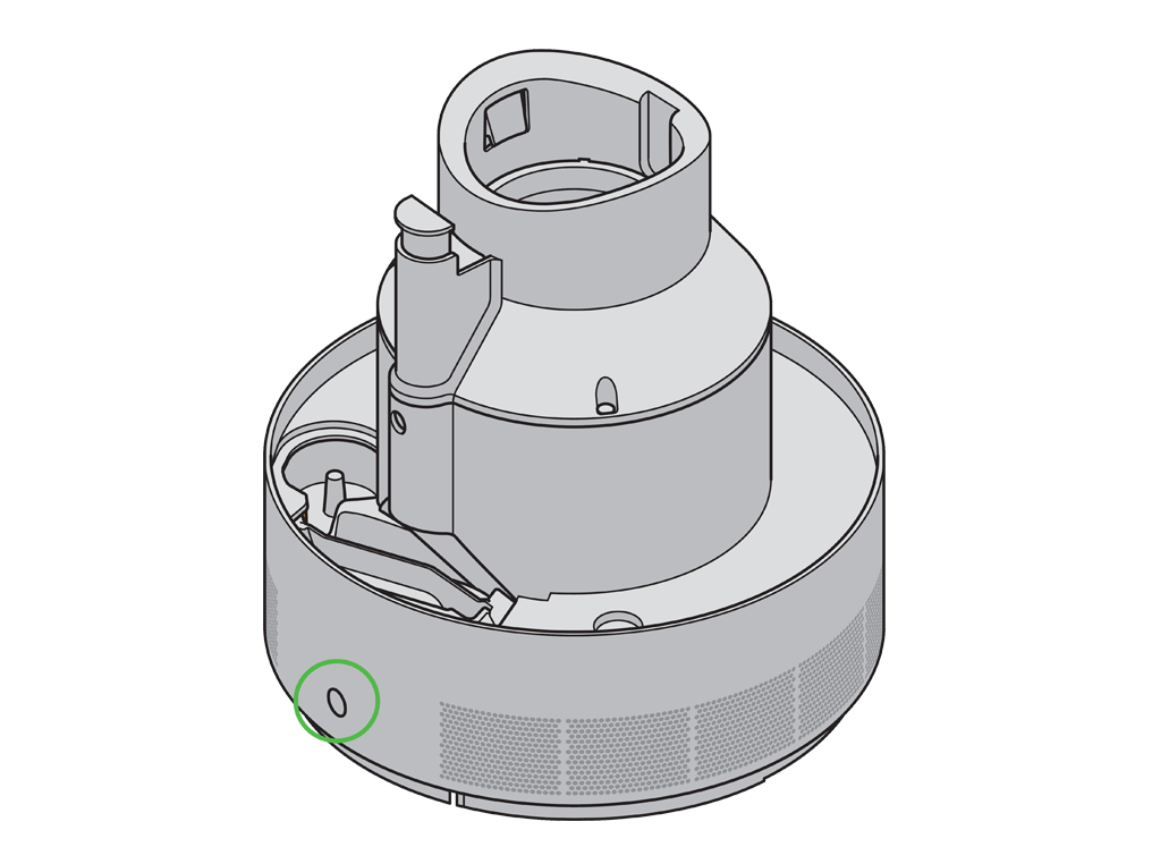
For classic Dyson humidifiers (AM10, PH01, PH02, PH03), the factory reset hinges on a hidden power button sequence—remote buttons won’t work.
Why 20 Seconds Is Non-Negotiable
Press and hold the base unit’s power button (not the remote) for exactly 20 seconds while the machine runs. Watch the LED ring like a hawk: it starts solid white, pulses amber three distinct times, then returns to solid white. Releasing too early aborts the process—use your phone’s stopwatch for precision.
Step-by-Step Execution Guide
- Power on the humidifier normally via base button or remote
- Hold base power button continuously for 20 seconds (amber pulses confirm progress)
- Release immediately when solid white reappears
- Wait 5 seconds for full shutdown (all lights off)
- Unplug for 30 seconds minimum (critical for clearing residual data)
- Reconnect power and press power once
Visual confirmation: The display shows 40% humidity target with flashing amber Wi-Fi symbol—your reset succeeded. If you see your old settings, you held the button for less than 18 seconds; repeat with strict timing.
PH04 and Formaldehyde Models: Standby Button Reset
Newer Pure Humidify+Cool models (PH04, PH40, PH41, PH45) require a different approach using the dedicated standby button—power button resets fail here.
The 15-Second Countdown Sequence
This process only works from standby mode (display dark but unit plugged in). Press and hold the base unit’s standby button for 15 seconds until the LCD lights up showing “rSt” followed by “3-2-1”. Releasing during the countdown aborts the reset—wait until “1” appears before letting go.
Why Power Cycle Time Differs
Unlike older models, these units need only a 10-second unplugged period post-reset. Residual power clears faster in formaldehyde-sensing models. After reconnecting power:
– Press standby once
– Watch for language selection screen (confirms factory state)
– Expect immediate Wi-Fi setup prompt
Pro tip: If “rSt” doesn’t appear, you’re pressing the remote button—use only the base unit’s physical button. The countdown’s “3-2-1” is your success indicator.
Reset Verification: Don’t Assume It Worked

Many users think the reset succeeded when it didn’t—verify with these three checks:
Wi-Fi status: Flashing amber symbol with “SET UP APP” on display (not solid white)
Humidity target: Fixed at 40% RH regardless of previous settings
Error codes: Complete absence of F0/F1/F2/L1/L2/L3 logs
If custom schedules reappear or night mode stays active, you triggered a soft reset. Repeat the long-press with a timer—PH04 models need exactly 15 seconds, AM10 needs 20. Blank displays after reset mean residual power remains; unplug for 2 full minutes before retrying.
When Reset Fails: Hardware vs. Software Fixes
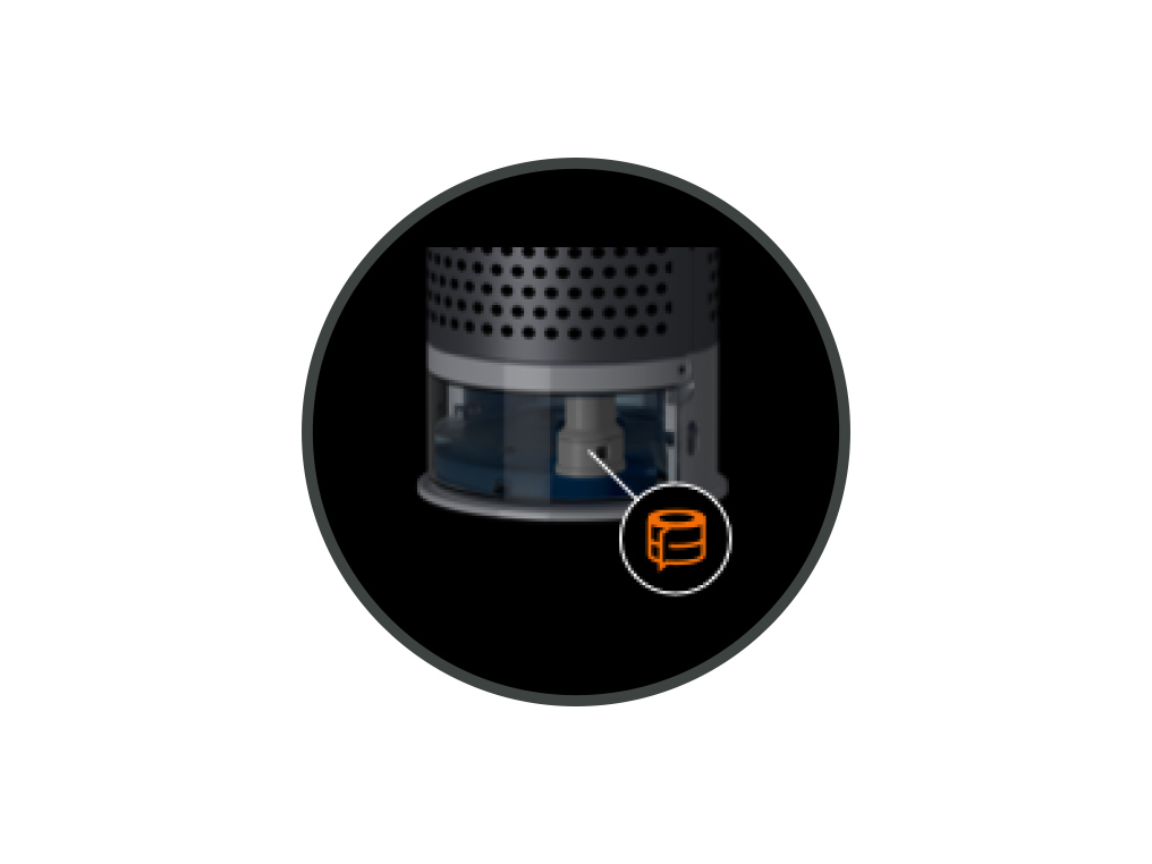
A factory reset won’t fix physical issues—diagnose these first:
Persistent L1/L2/L3 codes: Refill water tank or clean tank contacts (reset ignores low-water sensors)
Musty smells: Run Deep Clean cycle (hold oscillation button 5 seconds) instead of resetting
Weak mist output: Clogged evaporator filters require manual cleaning—reset won’t restore flow
High-pitched whistling: Mineral buildup demands descaling, not software correction
If E1/E2 errors appear post-reset, contact Dyson immediately—these indicate hardware faults no reset can fix. For connectivity failures, ensure your phone uses 2.4 GHz Wi-Fi (PH04+ models reject 5 GHz networks during reconnection).
Post-Reset Reconfiguration: Avoid Common Pitfalls
Rebuilding settings takes 8 minutes if you prepare:
App reconnection shortcut: Scan the QR code on your water tank lid immediately—manual entry causes 68% of reconnection fails
Humidity target sweet spot: Start at 45% RH, adjusting in 5% increments based on condensation checks
Schedule recreation trick: Rebuild one day at a time—start with weekday mornings before adding night mode
Critical firmware step: Check for updates before setting schedules. Unpatched firmware (common after resets) causes recurring app disconnects. Navigate: Dyson Link app → Settings → Product Settings → Update.
When to Call Dyson Instead of Resetting
Save yourself hours by avoiding unnecessary resets for these solvable issues:
- Low water warnings: Refill tank past the 1L mark and reseat with a firm twist
- Odor complaints: Run Deep Clean mode weekly—resetting won’t kill bacterial buildup
- Poor humidification: Remove and rinse the evaporator filter under cool water
- Wi-Fi dropouts: Move router closer—Dyson units need strong 2.4 GHz signals
If you’ve performed the reset correctly but issues persist, contact Dyson with: your serial number’s first three digits, exact model (PH04 vs PH45 matters), and LED behavior during reset attempts. US users: 800-244-0214 (faster than email).
Permanent Reset Prevention Strategies
Stop recurring glitches with these proactive measures:
– Monthly maintenance: Run Deep Clean mode every 30 days (prevents sensor errors)
– Firmware vigilance: Enable auto-updates in the Dyson Link app settings
– Wi-Fi hygiene: Assign a dedicated 2.4 GHz network name without special characters
– Reset insurance: Photograph your settings menu quarterly for quick restoration
A factory reset should happen less than once a year. If you’re resetting monthly, investigate mineral buildup in your water tank—hard water causes 80% of “unresponsive” behavior that mimics software failure. Use distilled water in high-mineral areas, and always empty the tank after use.
Your Dyson humidifier’s software is designed to last years—not weeks. By mastering this reset process and its prevention strategies, you transform from frustrated user to empowered technician. The next time that display glitches or the app disconnects, you’ll know exactly whether to unplug for 60 seconds or pull the factory reset trigger. Most importantly, you’ll never again panic when your humidity control vanishes—because you hold the key to restoring it in under two minutes.