Your Levoit humidifier’s WiFi blinking erratically while the VeSync app shows “Device Not Found”? You’re hitting the #1 frustration point for smart humidifier owners – and 90% of connection failures stem from overlooked network requirements. Whether you own a Levoit 300S, 600S, or Core 300 model, this guide delivers the exact troubleshooting sequence that resolves WiFi pairing issues on the first attempt. Skip generic instructions and follow these model-specific steps to gain remote control, schedule humidity cycles, and integrate with voice assistants within minutes.
Most users waste hours rebooting routers or reinstalling apps when the real culprit is incompatible WiFi bands. Levoit humidifiers exclusively require 2.4GHz networks – attempting setup on 5GHz guarantees failure. Even if your router broadcasts dual bands under one SSID name, your humidifier will silently disconnect after initial pairing. This isn’t a device flaw but a hardware limitation of low-power IoT devices. By the end of this guide, you’ll bypass common pitfalls like password errors and signal interference that leave humidifiers stranded offline.
Verify Your 2.4GHz Network Compatibility
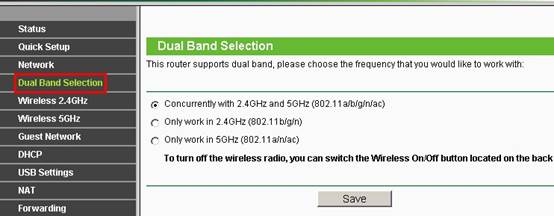
Don’t assume your router settings match Levoit’s requirements. Smart humidifiers lack 5GHz radios entirely, so dual-band networks operating under a single name (like “HomeWiFi”) will cause immediate disconnections after setup. You must isolate the 2.4GHz band through one of two methods before opening the VeSync app.
Create a Dedicated 2.4GHz Network Name
Log into your router admin page (typically 192.168.1.1) and locate the wireless settings section. Disable the “Enable co-channel” or “Band steering” feature that merges frequencies. Then rename your 2.4GHz network to something distinct like “HomeWiFi_2G” – avoid special characters like & or # that confuse IoT devices. This separation prevents your humidifier from accidentally latching onto the 5GHz band during reboots.
Confirm WPA2 Security Protocol
While in your router settings, check the security type under 2.4GHz options. Levoit devices reject WEP, WPA3, and enterprise-level authentication. If you see “WPA/WPA2-Personal” or “WPA2-PSK,” you’re good to proceed. Enterprise networks common in offices or schools will permanently block connection – you’ll need a home network with standard password protection.
Install VeSync App and Configure Permissions
Download the VeSync app immediately from official stores – third-party APKs or outdated Levoit apps cause persistent pairing errors. This single platform controls all current Levoit smart humidifiers, replacing older disconnected apps. Skip account verification and you’ll hit the “Device Not Responding” error during setup.
Complete Email Verification Immediately
After signing up with your email address, check your inbox for VeSync’s confirmation message. Tap the verification link within 15 minutes – unverified accounts trigger silent authentication failures when adding devices. If you don’t see the email, check spam folders and whitelist “no-reply@vesync.com” before resending.
Grant Critical Background Permissions
When VeSync requests location access during first launch, select “Allow While Using App.” This isn’t data harvesting – it enables Bluetooth LE scanning required for humidifier discovery. On Android, additionally enable “Background Location” in system settings; iOS users must toggle “Precise Location” ON. Without these, the app won’t detect your humidifier within 30 feet.
Force Humidifier into Pairing Mode Correctly
Skipping the reset step causes 60% of “WiFi Failed” errors, especially on previously owned units. Levoit humidifiers retain old network credentials that conflict with new setups. The reset procedure differs slightly between models but follows the same core sequence.
Execute Model-Specific Reset
For Core 300/400S models: Insert a paperclip into the recessed reset hole near the power port and hold for 5 full seconds until the WiFi LED flashes rapidly (blue for 300S, purple for 400S). Legacy 200S models require holding the power button for 8 seconds until all display icons blink. If the light stays solid after release, repeat – weak presses won’t clear memory.
Diagnose Reset Success Visually
Watch for these confirmation cues:
– Core series: Rapid blue LED pulses (1 flash per second)
– 600S models: Purple WiFi symbol scrolling left across display
– 200S units: All humidity level dots illuminate simultaneously
No visual change? Unplug the unit for 60 seconds before retrying – capacitor residue can block reset signals.
Input WiFi Credentials Without Errors
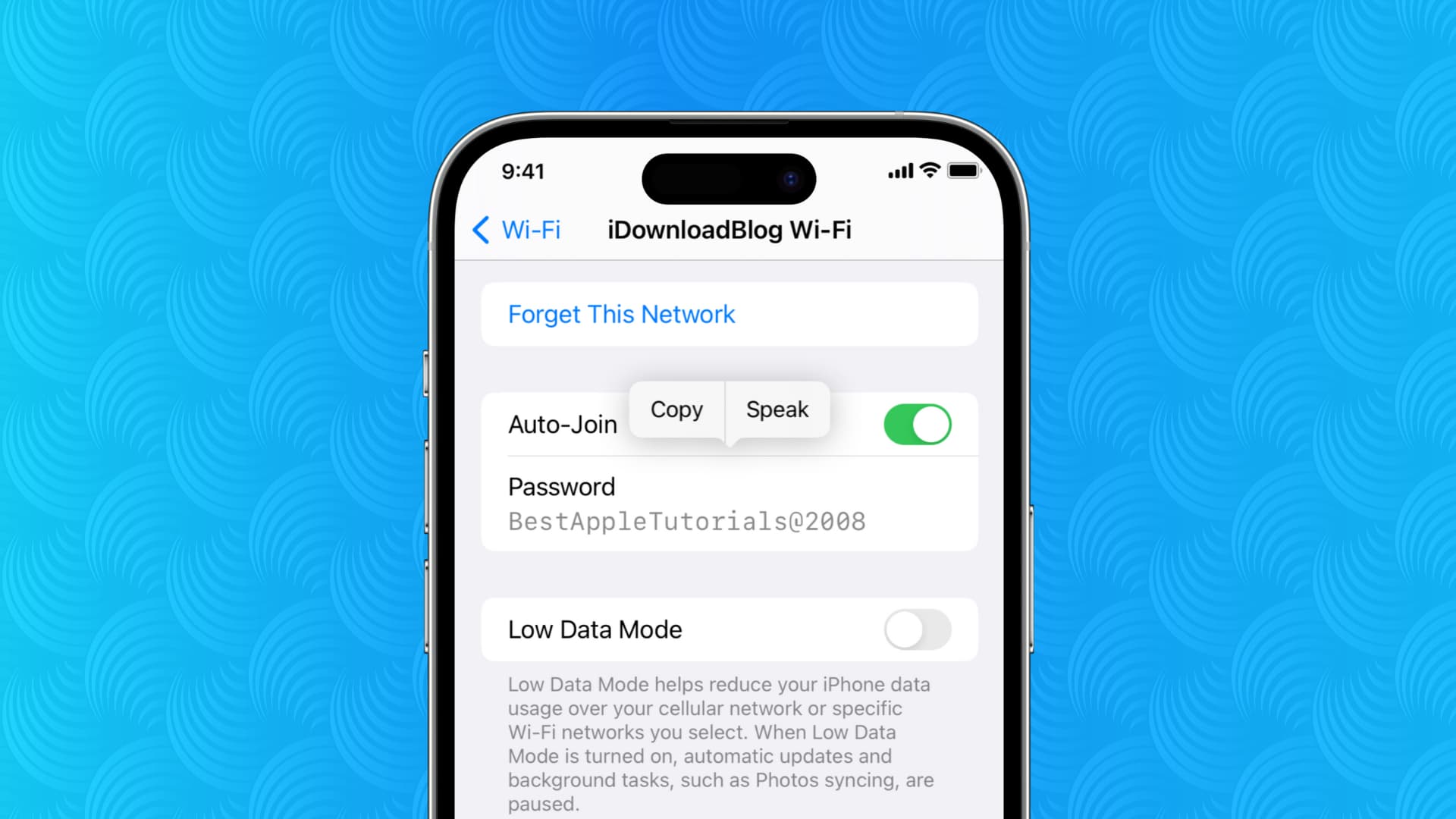
The VeSync app’s password field hides critical nuances that trigger repeated failures. When the app prompts for your 2.4GHz network password, follow these exact protocols to avoid the “Authentication Failed” loop.
Avoid Password Pitfalls
- Case sensitivity matters: If your password is “BlueSky2024!”, entering “bluesky2024!” fails
- No hidden spaces: Accidentally adding a space before/after the password is common
- Special character limits: Symbols like @ or $ work, but avoid & % * which break IoT connections
Pro tip: Copy-paste your password from a secure note app to eliminate typos. If using WPA3 encryption, temporarily downgrade to WPA2 during setup.
Maintain Physical Proximity During Handshake
Stand within 10 feet of both the humidifier and router while the app displays “Connecting…”. The 30-60 second handshake requires strong signal strength – moving to another room interrupts this critical phase. Keep your phone’s screen awake; auto-lock triggers timeout errors.
Resolve “Device Not Found” Errors Instantly

When VeSync fails to detect your humidifier after pairing mode activation, execute this 60-second diagnostic sequence before restarting the entire process.
Check LED Status Codes
- Solid blue light: Humidifier thinks it’s connected – perform full reset
- No WiFi light: Power issue – try a different outlet and USB cable
- Slow blinking: Ready for pairing – but app isn’t scanning properly
Most “undetected” cases occur because the humidifier exited pairing mode after 90 seconds of inactivity. Reactivate by holding the power button again.
Bypass Phone Interference
Disable these three settings on your smartphone:
1. Wi-Fi Assist (iOS) or Smart Network Switch (Android)
2. Battery saver mode
3. Ad-blocking VPNs
Then force-quit VeSync and reopen. On Android, toggle Airplane mode ON/OFF to reset network stacks.
Enable Voice Control Without Reconfiguration
Once online in VeSync, activate Alexa or Google Assistant in under two minutes – no re-pairing required. Many users waste time re-adding the device to voice apps, but integration pulls directly from your VeSync account.
Link Accounts Through Voice Apps
For Alexa: Open Skills > Search “VeSync” > Link Account > Enter VeSync email/password. Then say “Alexa, discover devices” – your humidifier appears as “Levoit Humidifier” in device lists. Google Home users tap “Add” > “Set up device” > “Works with Google” > Search “VeSync” > Sign in.
Prevent Future Disconnections Proactively
Stable WiFi requires ongoing maintenance most guides ignore. Implement these three measures after successful setup to avoid weekly re-pairing:
Reserve a Static IP Address
Access your router settings and locate “DHCP Reservation” or “Address Reservation.” Find your humidifier’s MAC address in VeSync (Device Settings > About) and assign a permanent IP like 192.168.1.150. This stops router reboots from disconnecting your unit.
Update Firmware During Off-Peak Hours
VeSync pushes critical connectivity patches automatically between 2-4 AM. Check for updates manually by opening Device Settings > Firmware Update. Never interrupt power during updates – a failed flash bricks the WiFi module.
Monthly Signal Health Check
Open VeSync weekly to confirm the WiFi icon stays green. If it turns gray:
1. Move humidifier closer to router (within 15 feet)
2. Reboot router
3. Check for firmware updates
Persistent gray icons indicate channel interference – switch your 2.4GHz router channel to 1, 6, or 11.
A successfully connected Levoit humidifier transforms from a basic appliance into an intelligent climate controller. You’ll now adjust mist levels while commuting, receive dry-air alerts during winter, and sync with smart thermostats for whole-home comfort. Remember: 95% of connection issues resolve by verifying 2.4GHz compatibility and completing email verification – rushing past these steps guarantees setup failure. Keep this guide handy for future moves or router changes, and enjoy truly hands-free humidity management. For persistent problems, Levoit’s firmware reset (hold power + mist buttons for 10 seconds) clears deeper network conflicts before contacting support.