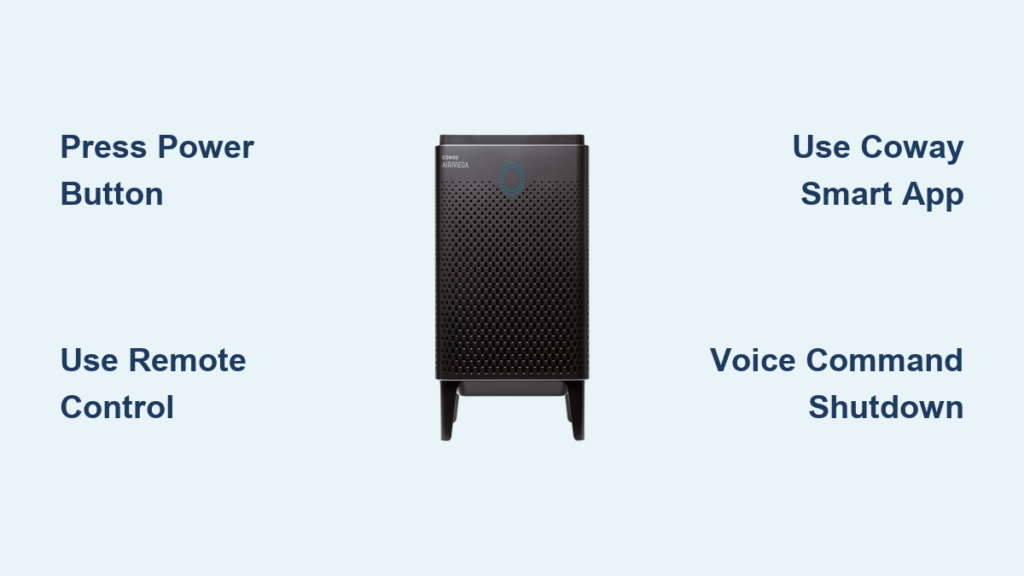
Your Coway air purifier might be working perfectly, but when it’s time to shut it down, you suddenly realize there’s no obvious “off” switch. Whether you’re preparing for bed, leaving the house, or troubleshooting an issue, knowing exactly how to turn off your Coway air purifier properly is essential for both convenience and device longevity. Most Coway models don’t have a traditional on/off switch but instead use power buttons that toggle the device status, meaning the same button turns it on and off. Understanding this basic functionality prevents confusion when you’re trying to power down your unit.
Learning the correct shutdown method matters because improper power management can lead to unnecessary energy consumption, premature filter wear, or even disrupt your smart home ecosystem if you’re using app or voice controls. Some Coway models enter standby mode rather than fully powering down, which maintains connectivity for scheduled operations while still reducing energy use. This guide covers every legitimate shutdown method across Coway’s product line, including model-specific instructions, troubleshooting for unresponsive controls, and energy-saving tips you won’t find in the basic manual.
Manual Power Button Shutdown for All Coway Models
Pressing the physical power button remains the most reliable way to turn off your Coway air purifier, working even when Wi-Fi is down or remote batteries are dead. This method applies to every Coway model from the compact Airmega 150 to the powerful Airmega 400S, though button placement varies across the product line.
Top Panel Button Operation on Airmega Models: On premium Airmega series units (300, 400, and connected models), locate the circular power button on the top control panel. Press it once firmly—don’t hold it—and watch for the display to dim completely. The fan will gradually slow over 5-10 seconds before stopping, which protects the motor from sudden strain. This gradual shutdown is normal and indicates your unit is functioning correctly.
Front Panel Button Technique for Mighty Models: The popular Coway Mighty AP-1512HH places its power button below the air quality indicator lights on the front panel. Press this button once to initiate shutdown—the colored lights will extinguish and the display screen will go dark within seconds. If you press and nothing happens, try pressing more firmly as the button requires deliberate contact to register.
Confirming Complete Shutdown: After pressing the power button, verify your Coway air purifier has fully powered down by checking for these visual cues:
– The display screen is completely dark (no backlight)
– Air quality indicator lights have turned off
– Fan noise has diminished to silence
– The unit no longer responds to filter reset button presses
Pro Tip: When turning off your Coway purifier at night, press the button gently to avoid the audible confirmation beep that some models emit—a small detail that prevents disturbing light sleepers.
Remote Control Power-Off Procedure for Hard-to-Reach Units

If your Coway air purifier sits high on a shelf or in another difficult-to-access location, the included remote control provides convenient shutdown without getting up from your couch or bed. This method works on all models that ship with a remote, including the Airmega 200M, 300, and 400 series.
Effective Remote Operation Technique: Point the remote directly at your air purifier’s infrared sensor (usually visible as a small dark window near the display) from no more than 16 feet away. Press the power button once and wait 3-5 seconds for the unit to respond. If your remote fails to work consistently, replace the CR2025 or CR2032 batteries—even partially depleted batteries can cause intermittent functionality.
Troubleshooting Remote Power Issues: When your remote won’t turn off the purifier, follow these steps:
1. Clean the remote’s infrared emitter with a soft cloth to remove dust buildup
2. Ensure no objects are blocking the path between remote and sensor
3. Try operating from different angles—sometimes direct line-of-sight works best
4. Remove remote batteries for 60 seconds, then reinstall to reset the remote
Warning: Never spray cleaning products directly on the remote or sensor area—use only dry or slightly damp cloths to avoid damaging electronic components.
Coway Smart App Shutdown for Remote Control

Wi-Fi enabled Coway air purifiers (Airmega models with “C” or “Wi-Fi” in their names) let you turn off your unit from anywhere using the Coway Smart app—a lifesaver when you’ve forgotten to power down before leaving home.
Step-by-Step App Power-Off Process: Open the Coway Smart app on your smartphone, select your specific air purifier from the device list, then tap the large power icon on the main control screen. The app will immediately display “Powering Off” followed by “Off” status confirmation. For complete peace of mind, check that the physical unit’s display has gone dark within 15 seconds.
Creating Automatic Shutdown Schedules: Maximize convenience by setting your Coway purifier to automatically turn off at specific times:
– Tap “Schedule” in the app menu
– Select “Create New Schedule”
– Set your desired off time (e.g., 8:00 AM on weekdays)
– Choose which days the schedule applies
– Save and confirm the schedule
This feature proves especially valuable for turning off your bedroom purifier automatically when you wake up, eliminating the need to manually power down each morning.
Voice Command Shutdown with Alexa or Google Assistant
If your Coway air purifier supports smart home integration, you can turn it off using simple voice commands—perfect when your hands are full or you’re already settling in for sleep.
Setting Up Voice Control: First link your Coway account to your preferred voice assistant through the Alexa or Google Home app. Say “Alexa, discover devices” or “Hey Google, sync my devices” to complete the connection. Once set up, use commands like:
– “Alexa, turn off the living room air purifier”
– “Hey Google, switch off Coway bedroom purifier”
– “Alexa, stop the air purifier”
Troubleshooting Voice Commands: When voice shutdown fails:
– Verify your Coway account remains linked in the voice assistant app
– Check that your purifier appears in the voice assistant’s device list
– Ensure you’re using the exact room name assigned to your purifier
– Restart both your voice assistant device and Coway purifier if issues persist
Timer Function Auto-Shutdown for Sleep Periods

Rather than manually turning off your Coway air purifier, use the built-in timer function to schedule automatic shutdown after a set duration—ideal for running the unit while you fall asleep then powering down once you’re deep in sleep.
Activating Timer Shutdown: Press the Timer button on your purifier’s control panel or remote until your desired duration appears (typically 1, 2, 4, or 8 hours). The display will show the remaining time in hours. Your Coway will run continuously for this period, then power off automatically. The timer resets each time you restart the purifier.
Best Timer Settings by Model:
– Coway Mighty AP-1512HH: Set to 8 hours for all-night operation
– Airmega 150: Use 4-hour timer for smaller bedrooms
– Airmega 400S: Program 2-hour timer for quick post-cooking air cleaning
Pro Tip: For optimal sleep quality, set your timer to end 30 minutes before your alarm—this prevents the sudden silence from disturbing light sleepers as the purifier shuts down.
Complete Power Disconnection for Extended Storage
When preparing your Coway air purifier for vacation storage or seasonal disuse, fully unplugging the unit eliminates standby power consumption and protects against electrical surges.
Safe Unplugging Protocol: First turn off your purifier using the power button, then wait 30 seconds for internal systems to settle before removing the plug from the wall. This two-step process prevents potential electrical feedback that could damage sensitive components. For models with detachable power cords, disconnect at both ends.
Post-Reconnection Setup: After restoring power following extended disconnection, your Coway will reset to factory defaults (usually Auto Mode at medium fan speed). You’ll need to:
– Reconnect to Wi-Fi for smart models
– Reset preferred fan speed settings
– Recalibrate air quality sensors by running in manual mode for 15 minutes
Troubleshooting Unresponsive Power Controls
When your Coway air purifier won’t turn off using standard methods, systematic troubleshooting usually resolves the issue without professional service.
Power Button Not Responding? Try This: Unplug the unit for 30 seconds to reset internal circuits, then plug back in and attempt shutdown again. If the problem persists, clean around the button with compressed air to remove dust buildup that might prevent proper contact.
Remote and App Control Failures: When multiple control methods fail simultaneously:
1. Check circuit breaker to ensure power is reaching the outlet
2. Test with a different electrical outlet
3. Inspect power cord for visible damage along its entire length
4. Contact Coway support if basic troubleshooting doesn’t resolve the issue
Warning: Never force a stuck power button or attempt internal repairs yourself—Coway units contain high-voltage components that pose shock hazards even when unplugged.
Standby Power Management for Energy Savings
Understanding your Coway air purifier’s standby behavior helps you balance convenience with energy efficiency when deciding whether to fully unplug or leave in standby mode.
Standby Mode Reality Check: When turned off via button or remote, most Coway models draw less than 1 watt of power to maintain connectivity for scheduled operations and remote wake-up. This minimal consumption costs approximately $0.87 per year at average electricity rates—negligible for most users but worth eliminating if you’re pursuing zero-energy standby.
When to Fully Unplug: Reserve complete power disconnection for:
– Extended vacations (more than 7 days)
– During severe weather warnings with potential power surges
– When performing internal maintenance or filter replacements
– If you’re strictly monitoring household energy consumption
By mastering these six shutdown methods, you’ll gain complete control over your Coway air purifier’s operation while extending its lifespan and optimizing energy use. Whether you prefer the simplicity of the physical power button, the convenience of voice commands, or the automation of scheduled shutdowns, there’s a perfect method for your lifestyle and specific Coway model. Remember that proper shutdown technique isn’t just about convenience—it protects your investment and ensures your air purifier delivers clean air reliably for years to come.